Google Analytics & Sheets
Estimated reading time: 15 minutes
Note on Google sources
Google Analytics, Google Ads, Google Sheets and Google Drive are native OAuth connectors maintained directly by clariBI, available on every tier including Free. They're not part of the MCP catalog because Google doesn't publish hosted MCP servers for these surfaces yet. See the MCP catalog for the 90+ vendors that are.
Connect your Google Analytics properties and Google Sheets spreadsheets to clariBI through OAuth. No API keys to manage - just sign in with your Google account.
Google Analytics
What You Get
Once connected, you can analyze your website and app analytics data through clariBI's AI. Ask questions like "What were our top traffic sources last month?" or "Show me the conversion funnel for the past 90 days."
Setup Steps
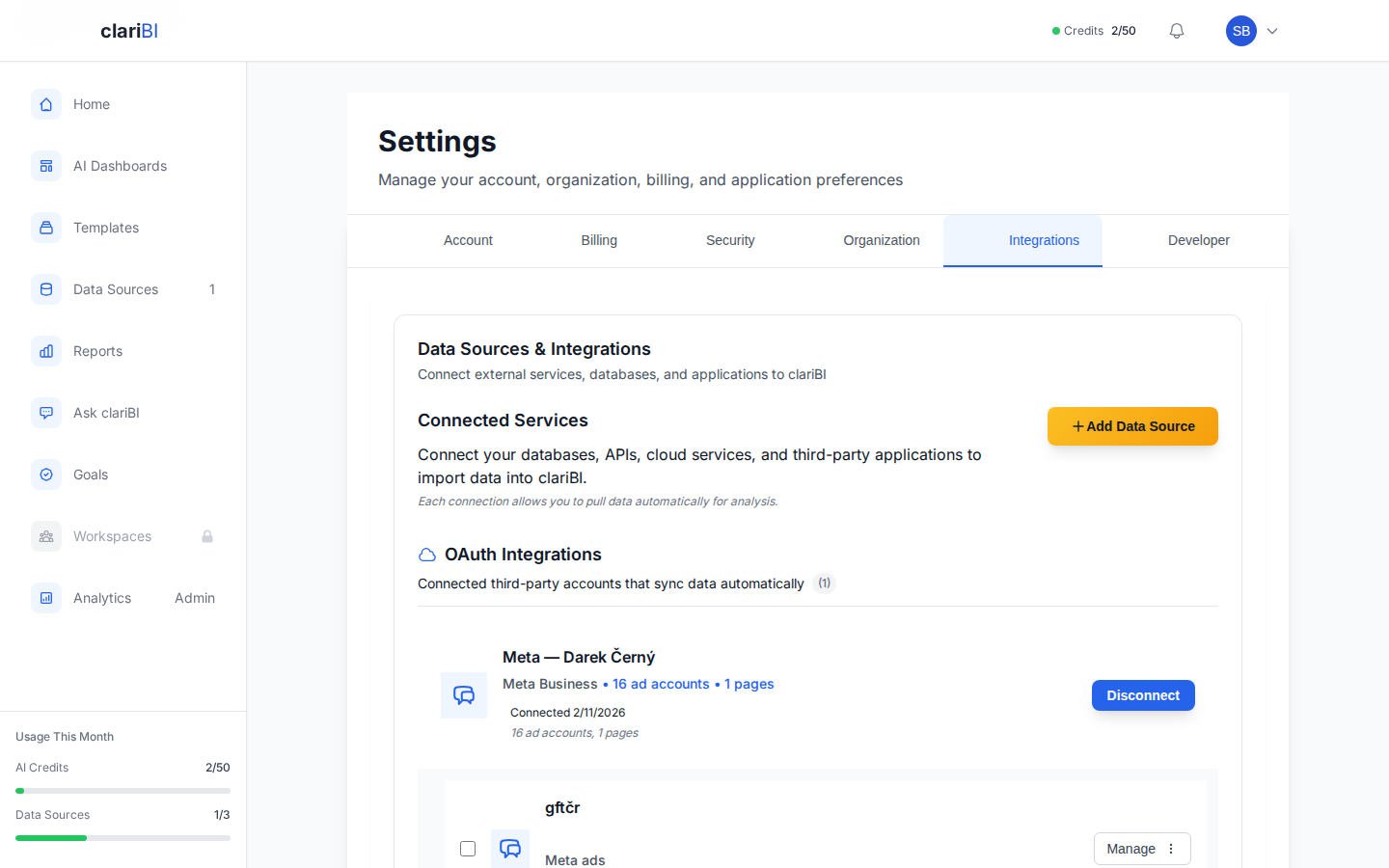
Go to Data Sources > Add Data Source > Google Analytics
Click Connect with Google. A Google OAuth popup appears.
Sign in with the Google account that has access to your Analytics property. Grant clariBI read-only access to your Analytics data.
After authorization, select which Analytics property and views to connect.
Click Save. clariBI runs an initial sync to catalog available metrics and dimensions.
Available Data
clariBI can pull standard Google Analytics metrics including:
- Sessions, users, pageviews, bounce rate
- Traffic sources (organic, paid, social, referral, direct)
- Geographic and device breakdowns
- Conversion goals and e-commerce transactions
- Custom events and dimensions (if configured in GA)
GA4 Support
clariBI connects to both Universal Analytics (UA) and Google Analytics 4 (GA4). GA4 is the current version. If you have both, select the GA4 property for the most current data.
Google Sheets
What You Get
Connect a Google Sheet and clariBI treats it like a database table. Changes you make in the sheet are picked up on the next sync. This is great for data that your team maintains manually in spreadsheets.
Setup Steps
Go to Data Sources > Add Data Source > Google Sheets
Click Connect with Google and authorize read-only access to your Sheets.
Browse your Drive or paste a spreadsheet URL to select the sheet to connect.
Choose the specific sheet tab if the workbook has multiple tabs.
Preview the data to verify headers and types, then click Save.
Best Practices for Sheets
- First row must contain column headers
- Avoid merged cells - they confuse the parser
- Keep data types consistent within columns (do not mix numbers and text)
- Use a dedicated "data" tab if your sheet has calculation tabs, charts, or formatting
Sync Frequency
Google sources sync based on your tier's cache duration. You can trigger a manual sync at any time from the Data Sources page. For near-real-time updates, use the auto-refresh feature on your dashboards.
Revoking Access
To disconnect, go to Data Sources, find the Google connection, and click Delete. This removes clariBI's access. You can also revoke from your Google Account settings under "Third-party apps with account access."
Permissions
clariBI requests read-only access to your Google data. It cannot modify your Analytics configuration or edit your Sheets. The OAuth token is stored encrypted in clariBI's database.
Other Google Integrations
In addition to Google Analytics and Google Sheets, clariBI also supports:
- Google Ads - connect your Google Ads account to analyze campaign performance, spend, and conversions
- Google Drive - connect to files stored in Google Drive for analysis
These integrations use the same Google OAuth authorization flow described above.
Related
Ready to try clariBI?
Start your free 14-day trial. No credit card required.
Looking for step-by-step setup guides?
See our dedicated integration pages: Google Analytics · Google Ads · Google Sheets · Google Drive · BigQuery