Before You Start
You need at least one connected data source. If you have not connected one yet, see Uploading CSV, Excel, and PDF Files or Connecting PostgreSQL, MySQL, and SQL Server.
Step 1: Create a New Dashboard
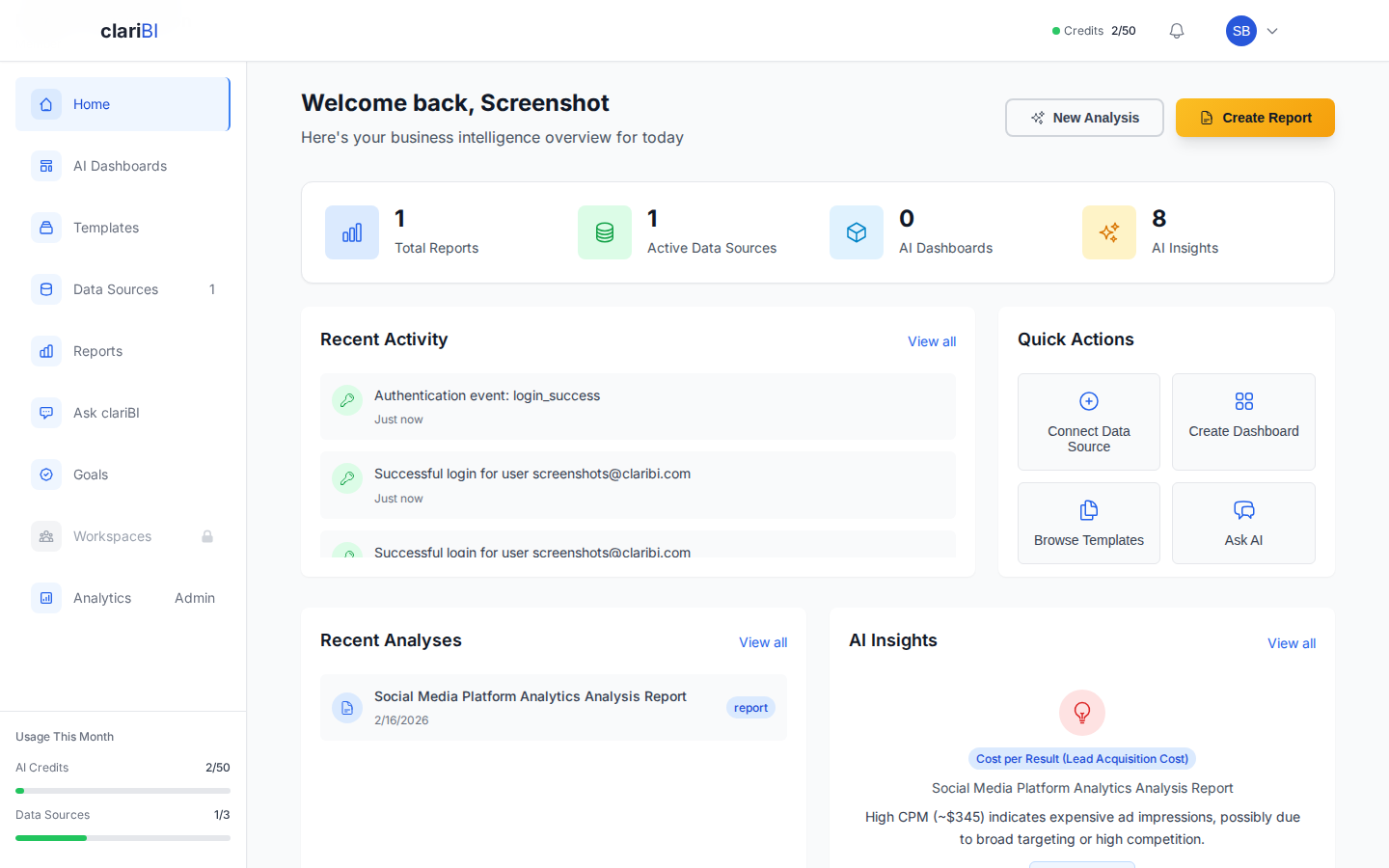
From the sidebar, click Dashboards, then click + New Dashboard.
Enter a name for your dashboard (e.g., "Q4 Sales Overview") and optionally a description. Choose a workspace if you have multiple -- this determines who can see the dashboard.
Click Create.
Step 2: Add Your First Widget
You are now in the dashboard builder, looking at an empty grid. Click + Add Widget in the toolbar.
The widget picker shows all available widget types organized by category:
- Charts -- line, bar, pie, scatter, area, and more
- Metrics -- single number displays with optional comparison
- Tables -- data tables with sorting and filtering
- Text -- markdown text blocks for annotations
For your first widget, try a Line Chart or Metric widget.
Step 3: Configure the Widget
After selecting a widget type, the configuration panel opens:
Select Data Source
Choose which connected data source provides the data for this widget.
Map the Data
Depending on the widget type:
- Line/Bar/Area chart -- select the X-axis field (usually a date) and Y-axis field (the metric you want to track)
- Pie chart -- select a category field and a value field
- Metric widget -- select the field to aggregate and the aggregation method (sum, average, count, min, max)
- Table -- select which columns to display
Set Filters
Optionally add filters to narrow the data displayed. For example, filter to a specific date range, region, or product category.
Customize Appearance
- Title -- a descriptive name shown above the widget
- Colors -- pick from preset palettes or set custom colors
- Legend -- toggle the chart legend on or off
- Format -- set number formats (decimal places, currency, percentage)
Click Save Widget.
Step 4: Add More Widgets
Repeat the process to add additional widgets. A typical dashboard might include:
- 3-4 metric widgets across the top (revenue, users, conversion rate, etc.)
- A line chart showing trends over time
- A bar chart comparing categories
- A table with detailed data
Step 5: Arrange the Layout
Widgets are placed on a responsive grid. You can:
- Drag a widget by its title bar to move it
- Resize a widget by dragging the bottom-right handle
- Rearrange freely -- widgets snap to the grid for clean alignment
For more details on layout options, see Dashboard Layout: Drag, Drop, Resize, Rearrange.
Step 6: Save and Share
Click Save in the toolbar. Your dashboard is now saved and accessible from the Dashboards list.
To share it:
- With your team -- anyone with access to the workspace can view it
- Via public link -- click Share > Create Public Link for external access
- As a default -- toggle "Set as default view" to make this your landing page
See Sharing Dashboards for full sharing options.
Tips for Effective Dashboards
- Start with the question. What decision should this dashboard help with? Build widgets that answer that question directly.
- Keep it focused. Five to eight widgets per dashboard is a good range. If you need more, create a second dashboard.
- Put the most important metric first. Top-left is where the eye goes first.
- Use consistent date ranges. If one widget shows last 30 days and another shows last 90, comparisons become confusing.