What Are Dashboard Templates?
Dashboard templates are pre-designed layouts with pre-configured widgets tailored to specific business needs. Instead of adding and configuring each widget individually, you select a template, connect your data, and the dashboard is ready.
clariBI includes templates across many categories, built from common patterns observed in business analytics.
Browsing the Template Library
From the sidebar, click Dashboards > + New Dashboard > Start from Template.
The template library opens with filters on the left and template cards in the center.
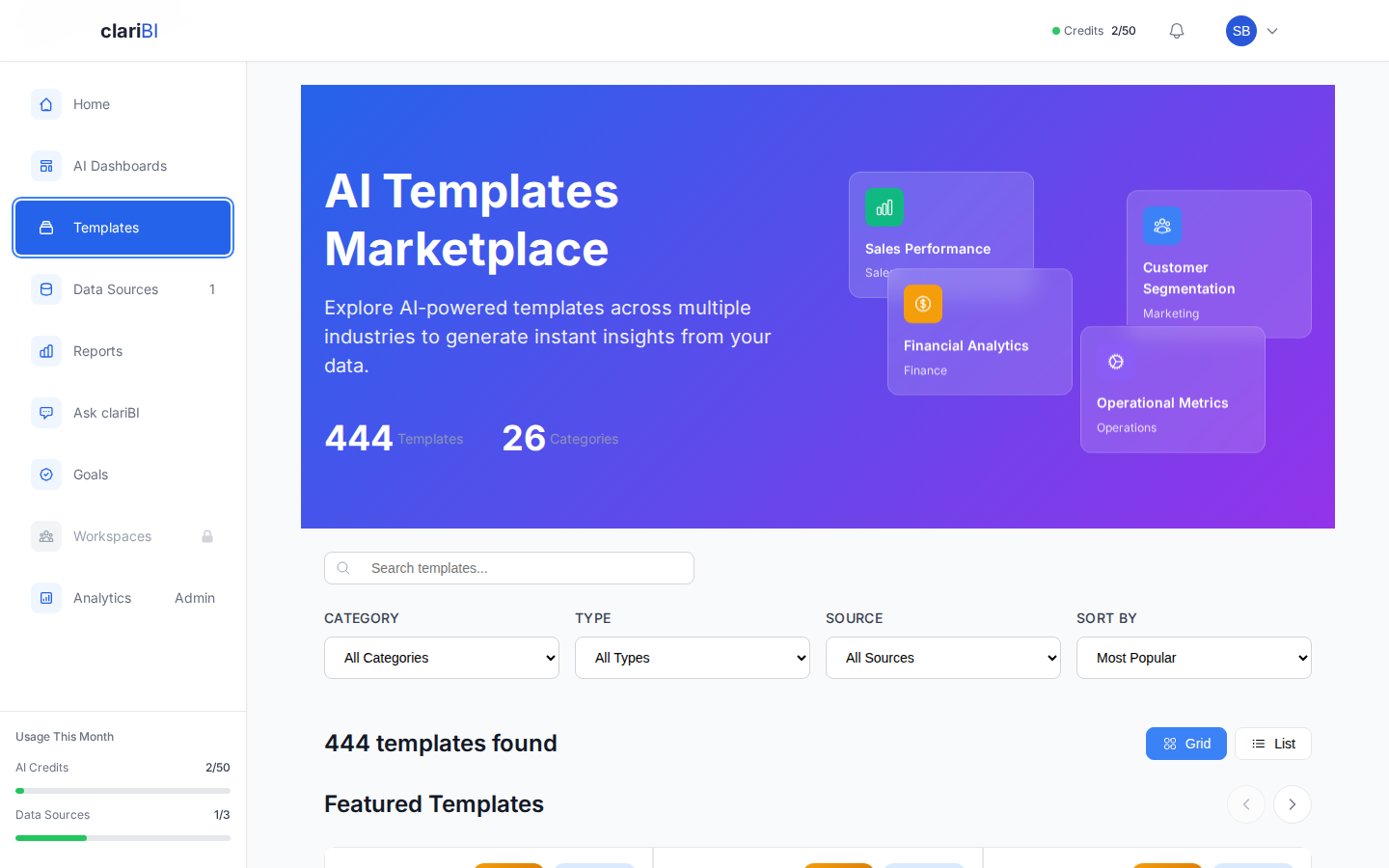
Filter Options
- Category: Sales, Marketing, Finance, Operations, HR, Product, Customer Support, Executive, IT, Project Management, and more
- Data Source Type: Database, Google Analytics, Google Sheets, Jira, CSV/Excel, REST API
- Widget Count: Small (2-4 widgets), Medium (5-8 widgets), Large (9+ widgets)
- Difficulty: Beginner-friendly, Intermediate, Advanced
Template Cards
Each card shows:
- Template name and description
- A thumbnail preview of the layout
- The number of widgets included
- Required data source types
- A "Preview" button and an "Use Template" button
Previewing a Template
Click Preview on any template card to open a full-screen preview. The preview shows the exact layout with sample data so you can see how the widgets are arranged and what types of visualizations are included.
The preview includes annotations explaining what each widget shows and what data fields it expects.
Applying a Template
- Click Use Template.
- Name your dashboard and choose a workspace.
- Map your data sources. The template lists the data fields it needs (e.g., "date field," "revenue field," "category field"). For each required field, select the matching column from your connected data source.
- Click Create Dashboard.
clariBI generates the dashboard with all widgets pre-configured and connected to your data. The layout, colors, and chart types are set according to the template design.
Customizing After Applying
Templates are a starting point, not a constraint. After applying a template, you can:
- Edit any widget -- change the chart type, colors, filters, or data source
- Add new widgets -- extend the template with additional visualizations
- Remove widgets -- delete any widget that is not relevant
- Rearrange the layout -- move and resize widgets freely
All the features described in Dashboard Builder: Widgets, Layout, and Configuration are available on template-based dashboards.
Popular Templates
Here are some of the most-used templates:
| Template | Category | Widgets | Description |
|---|---|---|---|
| Sales Overview | Sales | 8 | Revenue, pipeline, conversion, top products |
| Marketing Performance | Marketing | 7 | Traffic, leads, campaigns, channel comparison |
| Financial Summary | Finance | 6 | Revenue, expenses, profit margin, cash flow |
| Sprint Dashboard | Project Management | 6 | Velocity, burndown, issue distribution, cycle time |
| Customer Support | Support | 5 | Ticket volume, resolution time, satisfaction, backlog |
| Executive KPIs | Executive | 4 | Top-level metrics with trend sparklines |
| Website Analytics | Marketing | 7 | Sessions, page views, bounce rate, traffic sources |
| HR Overview | HR | 5 | Headcount, turnover, hiring pipeline, tenure distribution |
Creating Your Own Templates
Currently, template creation is available to organization Owners and Administrators:
- Build a dashboard the way you want it.
- Open the dashboard settings (gear icon).
- Click Save as Template.
- Add a name, description, and category.
- The template appears in your organization's template library for other users to find and apply.
Custom templates are private to your organization.