Role-Based Access Control
Estimated reading time: 12 minutes
clariBI's role-based access control (RBAC) determines what each user can see and do. This guide explains the five built-in roles and how permissions work.
Plan Requirement
RBAC management (custom roles, permission editing, role assignments) is available on Professional ($199/mo) and Enterprise ($999/mo) plans. On Free / Trial / Lite / Starter all users default to the Member role; you can still log in, run analyses, and share work, with role-level permission editing available starting on Professional. See Subscription Plans.
The Five Built-In Roles
Owner (35 permissions)
Full access to everything. Only the account creator starts as Owner. Owners can:
- Manage billing, subscriptions, and payments
- Configure all security settings including MFA enforcement
- Create, edit, and delete any content across the organization
- Manage all users and roles
- Access organization audit logs
- Transfer ownership
Administrator (29 permissions)
Broad access for day-to-day management. Cannot access billing or some security settings. Administrators can:
- Manage users (invite, remove, change roles except Owner)
- Create, edit, and delete dashboards, reports, and data sources
- Manage workspaces and sharing
- View audit logs
- Configure integrations
Analyst (14 permissions)
Focused on analytics and reporting. Cannot manage users or settings. Analysts can:
- Create and edit their own dashboards and reports
- Run AI analyses and conversational queries
- Upload files and process data (cannot create new data source connections)
- Create and manage goals
- Export reports
Member (8 permissions)
Standard access. The default role for new users. Members can:
- View dashboards, reports, and data sources
- Create reports and export data
- Upload files
- View analytics and goals
Viewer (6 permissions)
Read-only access. Viewers can:
- View dashboards, reports, and data sources
- View analytics and goals
- Export reports
Viewers cannot create, edit, or delete anything.
Permission Categories
Permissions are organized into 10 categories:
- User Management - invite, edit, remove users
- Data Management - connect, sync, manage data sources
- Analytics & Insights - run analyses, use AI
- Reports & Dashboards - create, edit, share, export
- Goals & Tracking - create and manage goals
- Billing & Subscriptions - manage plans and payments
- Organization Settings - configure org-level settings
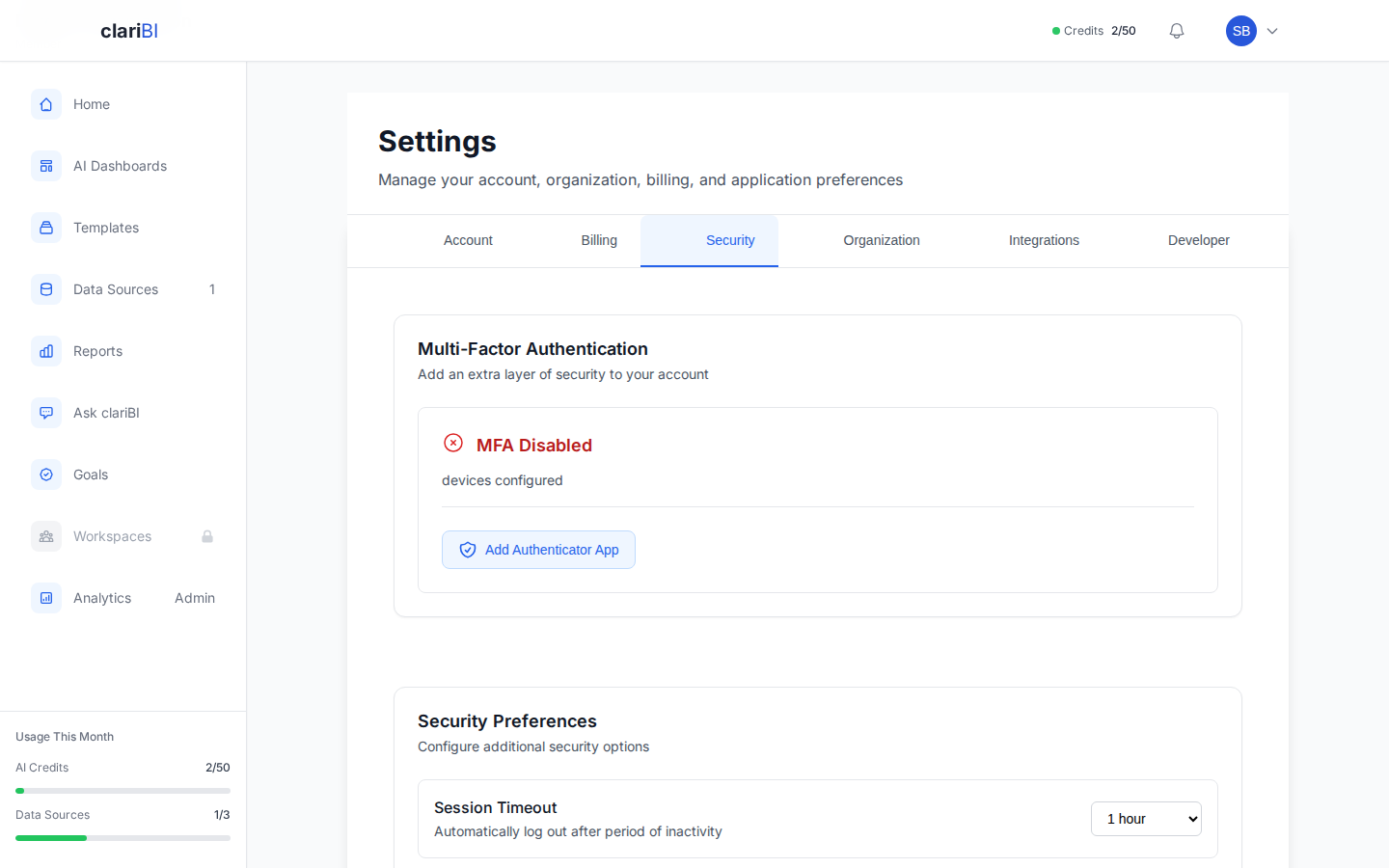
- Security & Access - MFA, sessions, API keys
- Integrations - manage third-party connections
- System Administration - platform-level admin access
Changing a User's Role
- Go to Settings > Organization > Team Members
- Find the user and click their current role
- Select the new role from the dropdown
- Click Save
Only Owners and Administrators can change roles. No one can assign a role higher than their own (Admins cannot create Owners).
Permission Hierarchy
Roles follow a general hierarchy where higher roles include the permissions of lower roles:
Viewer < Member < Analyst < Administrator < Owner
Each role has a defined set of permissions. An Administrator has all permissions of an Analyst plus additional management permissions. Custom roles can be created with any combination of permissions (see Custom Roles).
Organization-Level Enforcement
RBAC is enforced at both the server level and the interface level. The interface hides features the user cannot access, and the server rejects unauthorized requests even if a user attempts to access a restricted endpoint directly.
Pro Tip
Start with the least-privilege approach. Give new users the Member or Viewer role and upgrade as needed. It is easier to grant more access than to remove it after someone has already seen sensitive data.
Related
Ready to try clariBI?
Start your free 14-day trial. No credit card required.