Overview
Milestones divide a large goal into smaller checkpoints. Instead of waiting until the deadline to see whether you hit your target, milestones let you track incremental progress and catch problems early.
This guide explains how to create milestones, record progress, and read the progress tracking charts.
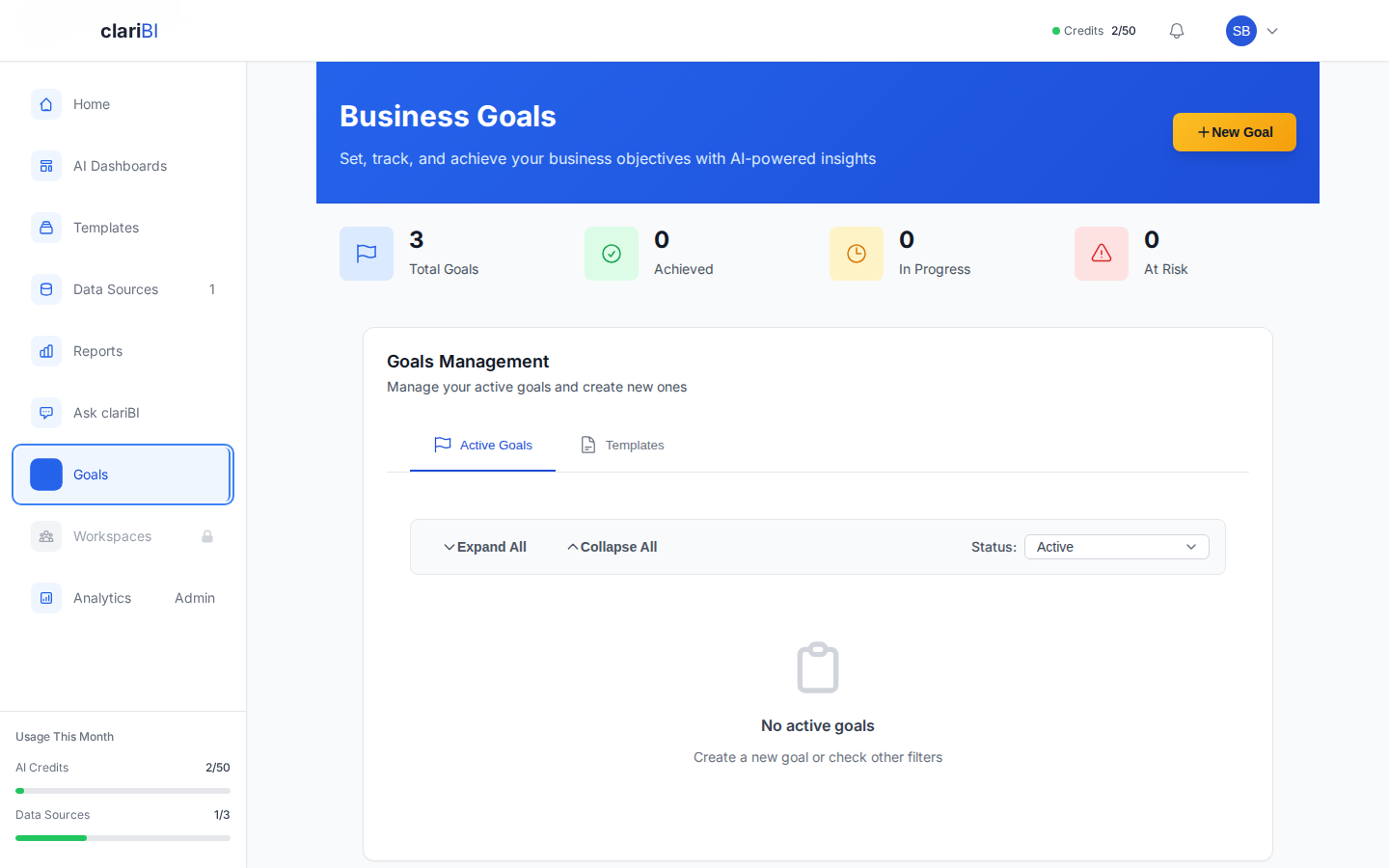
Creating Milestones
- Open an existing goal from the Goals page.
- Click the Milestones tab.
- Click + Add Milestone.
- Fill in the details:
- Milestone Name -- A brief description (e.g., "Reach 5,000 users" or "Launch email campaign").
- Target Value -- The metric value expected at this checkpoint. For a goal targeting 10,000 users by December, a milestone might target 5,000 by September.
- Due Date -- When this milestone should be reached.
- Notes -- Optional context about what needs to happen to reach this milestone.
- Click Save.
Repeat for each milestone. Most goals benefit from 3-5 milestones spread evenly across the timeline.
Milestone Order
Milestones are displayed chronologically by due date. You do not need to set an order manually -- clariBI sorts them automatically.
Tracking Progress
Manual Progress Updates
If your goal is not connected to a live data source, you can record progress manually:
- Open the goal.
- Click Update Progress.
- Enter the current metric value.
- Add an optional note explaining what changed (e.g., "Closed 12 new accounts this week").
- Click Save.
Each update is logged with a timestamp, creating a history of progress over time.
Automatic Progress Updates
Goals connected to live data sources update automatically at the frequency you set (daily, weekly, or monthly). See Connecting Goals to Live Data for Automatic Updates for setup instructions.
When auto-updates are enabled, clariBI records a new progress entry each time the data refreshes.
Reading the Progress Chart
Every goal has a progress chart showing:
- Actual progress line (solid) -- Your recorded values over time.
- Expected pace line (dashed) -- A straight line from the starting value to the target, representing steady progress.
- Milestone markers -- Vertical dotted lines at each milestone's due date.
Interpreting the Chart
- Actual above expected: You are ahead of schedule. The goal status shows "On Track."
- Actual below expected: You are behind schedule. The goal status shows "Behind" or "At Risk" depending on how far off pace you are.
- Actual meets a milestone marker: The milestone is automatically marked as "Reached" when the actual value meets or exceeds the milestone target on or before the due date.
Milestone Statuses
| Status | Meaning |
|---|---|
| Upcoming | Due date has not arrived yet |
| On Track | Progress suggests you will reach this milestone on time |
| Reached | Current value meets or exceeds the milestone target |
| Missed | Due date passed without reaching the target value |
Milestone statuses update automatically based on progress data. You can also manually mark a milestone as Reached if the automated check does not apply to your workflow.
Notifications for Milestones
Goal owners and watchers are notified when:
- A milestone is reached
- A milestone is missed (the due date passes without hitting the target)
- A milestone is approaching (3 days before the due date by default)
Adjust the advance warning period in Goals > Settings > Notifications.
Editing and Removing Milestones
To edit a milestone, click on it in the Milestones tab and update the fields. To delete a milestone, click the three-dot menu next to it and select Remove.
Removing a milestone does not affect progress data. The progress history remains intact.
Best Practices
- Space milestones evenly. If your goal spans 6 months, set milestones every 4-6 weeks so you get regular checkpoints.
- Be realistic about early milestones. Progress is often slow at the start. Set the first milestone at a conservative level.
- Add notes to updates. When you record manual progress, include a brief note. This creates valuable context for future reviews.
- Use milestones for accountability. Share milestone notifications with the team so everyone knows when checkpoints are hit or missed.