Overview
The Goals feature in clariBI lets you define measurable business objectives and track them over time. Instead of maintaining goals in a separate spreadsheet, you can keep them alongside your dashboards and reports -- connected to the same data sources that power your analytics.
This guide covers creating goals, setting targets, and organizing them for your team.
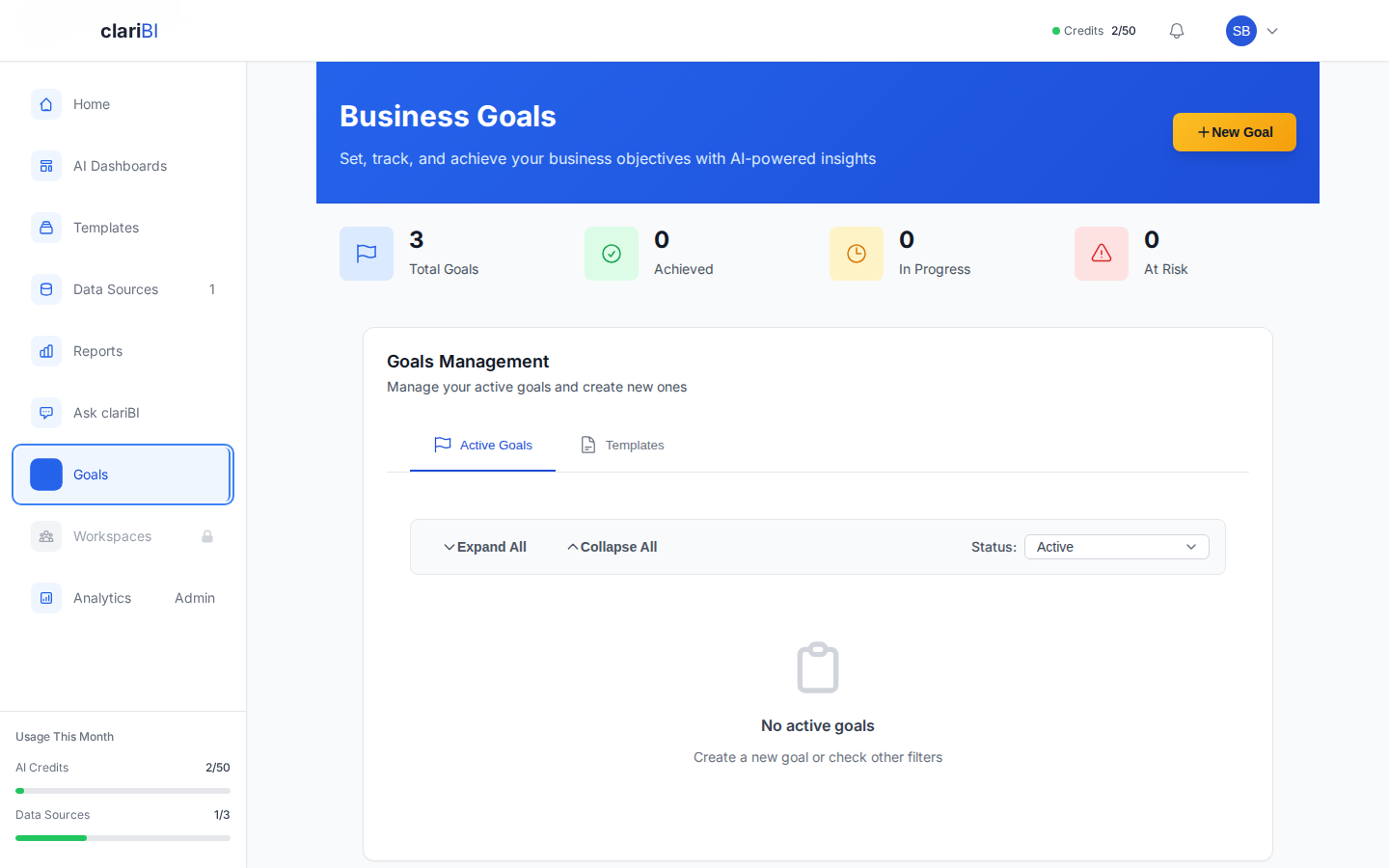
Creating a Goal
- Click Goals in the left sidebar.
- Click + New Goal.
- Fill in the goal details:
- Goal Name -- A clear, specific name (e.g., "Increase Monthly Revenue to $500K").
- Description -- Additional context about why this goal matters and how it will be measured.
- Category -- Optional grouping such as Revenue, Growth, Engagement, or Efficiency. You can create custom categories.
- Owner -- The team member responsible for this goal. They receive notifications about progress updates.
- Priority -- Low, Medium, High, or Critical.
- Click Continue to set your target.
Writing Good Goal Names
Effective goal names are specific and measurable. Compare these:
| Weak | Strong |
|---|---|
| Improve sales | Increase Q1 sales revenue by 15% |
| Get more users | Reach 10,000 monthly active users by June |
| Reduce churn | Lower monthly churn rate to under 3% |
Setting Targets
After creating the goal, you configure the target -- the measurable outcome you are aiming for.
Target Configuration
- Metric Type -- Choose from:
- Numeric -- A specific number (e.g., 10,000 users, $500,000 revenue)
- Percentage -- A rate or proportion (e.g., 15% growth, 3% churn rate)
- Currency -- A monetary amount with currency symbol
-
Custom -- Any unit you define (e.g., "support tickets resolved")
-
Starting Value -- Where you are today. Enter your current metric value manually.
- Target Value -- Where you want to be.
- Direction -- Are you trying to increase or decrease this metric? This determines how progress is visualized.
Setting Deadlines
Every goal should have a deadline:
- Start Date -- When tracking begins. Defaults to today.
- Target Date -- When you plan to hit the target.
- Review Frequency -- How often progress is checked: daily, weekly, monthly, or quarterly.
clariBI uses the start date, target date, and current progress to calculate whether you are on pace. A goal that is 50% complete at the halfway point shows as "On Track." A goal that is 30% complete at the halfway point shows as "Behind."
Organizing Goals
Categories
Group related goals into categories. Default categories include:
- Revenue
- Growth
- Engagement
- Efficiency
- Customer Satisfaction
To create a custom category, go to Goals > Settings > Categories and click Add Category.
Goal Dashboards
Pin your most important goals to a dashboard for at-a-glance tracking:
- Open a dashboard in edit mode.
- Click Add Widget > Goal Progress.
- Select one or more goals.
- Choose the display style: progress bar, gauge, or metric card.
Goal Statuses
Each goal has a status that updates automatically based on progress:
| Status | Meaning |
|---|---|
| Not Started | No progress recorded yet |
| On Track | Progress is at or above the expected pace |
| Behind | Progress is below the expected pace |
| At Risk | Significantly behind with limited time remaining |
| Completed | Target value reached |
| Missed | Deadline passed without reaching the target |
You can also manually update a goal's status if automatic tracking does not fit your workflow.
Notifications and Alerts
Goal owners and watchers receive notifications for:
- Weekly progress summaries (configurable frequency)
- Status changes (e.g., moving from On Track to Behind)
- Milestone completions (see Milestones and Progress Tracking)
- Goal completion or missed deadline
Configure notification preferences in Settings > Notifications > Goals.
Best Practices
- Limit active goals. Focus on 3-5 goals per team at a time. Too many goals dilute attention.
- Set realistic deadlines. Use your historical data to set achievable targets. clariBI can show trend lines to help you estimate.
- Assign clear owners. Every goal should have one accountable person, even if multiple people contribute.
- Review regularly. Use the review frequency setting to schedule check-ins and keep goals from going stale.
- Connect to data. Goals connected to live data sources update automatically. See Connecting Goals to Live Data for Automatic Updates for setup instructions.