Meta Ads: connecting your ad account and the reports it syncs
Connect a Meta (Facebook and Instagram) ad account to clariBI with read-only access, choose the date range and report types, and analyze spend, reach and conversions. Also covers keeping the connection alive.
What you need
- A Meta ad account and a Facebook login with access to it
- A free data source slot on your plan (each ad account is one source)
- Permission to connect data sources in clariBI (Owners and Administrators by default)
Meta Ads works on every plan. Google Ads connects the same way through its own Google Ads card (see the Google Ads integration page). The Meta Ads page in the documentation is a short version of this article, and the Meta Ads integration page lists what syncs.
Connect
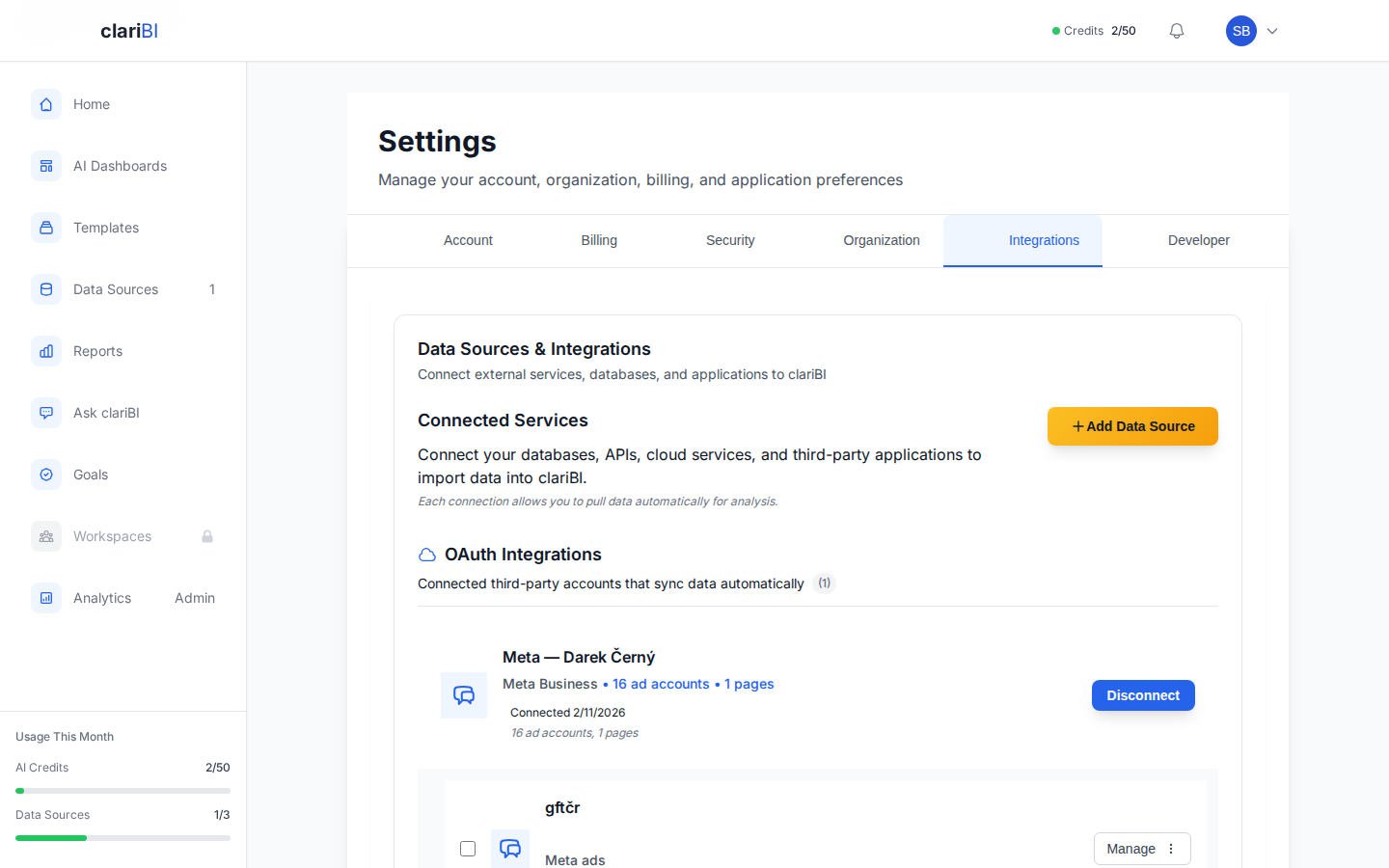
- Click Data Sources in the sidebar (Settings > Integrations), then Add Data Source.
- Open Apps and choose Meta Ads.
- Click Connect and sign in with Facebook. clariBI asks only for
ads_read: read-only access to your ad metrics. It cannot create, change or pause campaigns. - Back in clariBI, enter a Data Source Name and pick the account under Select Ad Account.
- Choose a Date Range: last 30 or 90 days, 6 or 12 months, 2 years, or the maximum Meta allows (37 months).
- Optionally click Customize report types to sync only some of them.
- Click Create Data Source.
The report types
| Report | One row per |
|---|---|
| Account Overview | day for the whole account: spend, impressions, clicks, reach |
| Campaign Performance | campaign per day |
| Ad Set Performance | ad set per day |
| Ad Creative Performance | ad per day |
| Age & Gender | age and gender bucket per day |
| Country Performance | country per day |
| Region Performance | region per day |
| Placement Performance | platform and position (feed, stories, reels) per day |
| Device Performance | device per day |
| Hourly Breakdown | hour of day |
| Video Metrics | ad per day, with video views and watch time |
| Conversion Actions | conversion action type per day, with cost per conversion |
Totals such as "spend last month" come from Account Overview. clariBI keeps each question to one report type so the same spend is not counted twice. Frequency, cost per result and similar rates are never added up across rows. Reach is not de-duplicated across age and gender buckets, so do not add reach across them.
Keeping the data current
clariBI fetches recent days again when the data is more than 24 hours old and a report, question or dashboard refresh needs it, and merges them into the history it already has. Meta revises recent conversions for a while, so the last few days are fetched again each time. To fetch at once, open the source in Settings > Integrations and click Sync Data.
Meta access tokens last 60 days. clariBI renews tokens that are close to expiring every night, so a connection normally keeps working as long as the Facebook user keeps access to the ad account.
Using the data
- An insights dashboard is built after the first sync, without AI credits.
- Ask questions in Ask clariBI, for example:
- "Which campaign had the lowest cost per conversion last month?"
- "Compare CPM by placement this quarter."
- "Show weekly spend for the last 12 weeks."
- Use the advertising templates for reports, and set a goal for spend or conversions.
More questions for ad data are in 30 example questions.
Removing the connection
Delete the source in Settings > Integrations to stop syncing. To withdraw clariBI's access on Meta's side as well, remove clariBI under Business Integrations in your Facebook settings. After that the source can no longer sync.
Troubleshooting
No ad accounts found for this account. The Facebook user has no access to an ad account. Ask the account's admin in Meta Business Settings to add you, then connect again.
No data after the sync. Check that the date range covers days with active campaigns and that you picked the right ad account.
Numbers differ slightly from Ads Manager. Check that you compare the same dates and the same attribution setting. Recent days can still change on Meta's side.
Syncing stopped. The user who connected the account may have lost access, or access was removed in Facebook settings. Connect the account again. Sync failures covers token renewal and other causes.