Overview
API keys let you access clariBI data programmatically -- from scripts, integrations, and third-party tools -- without using your username and password. Each key can be scoped to specific permissions and tied to your user account.
This guide covers the full lifecycle: creating, scoping, rotating, and revoking API keys.
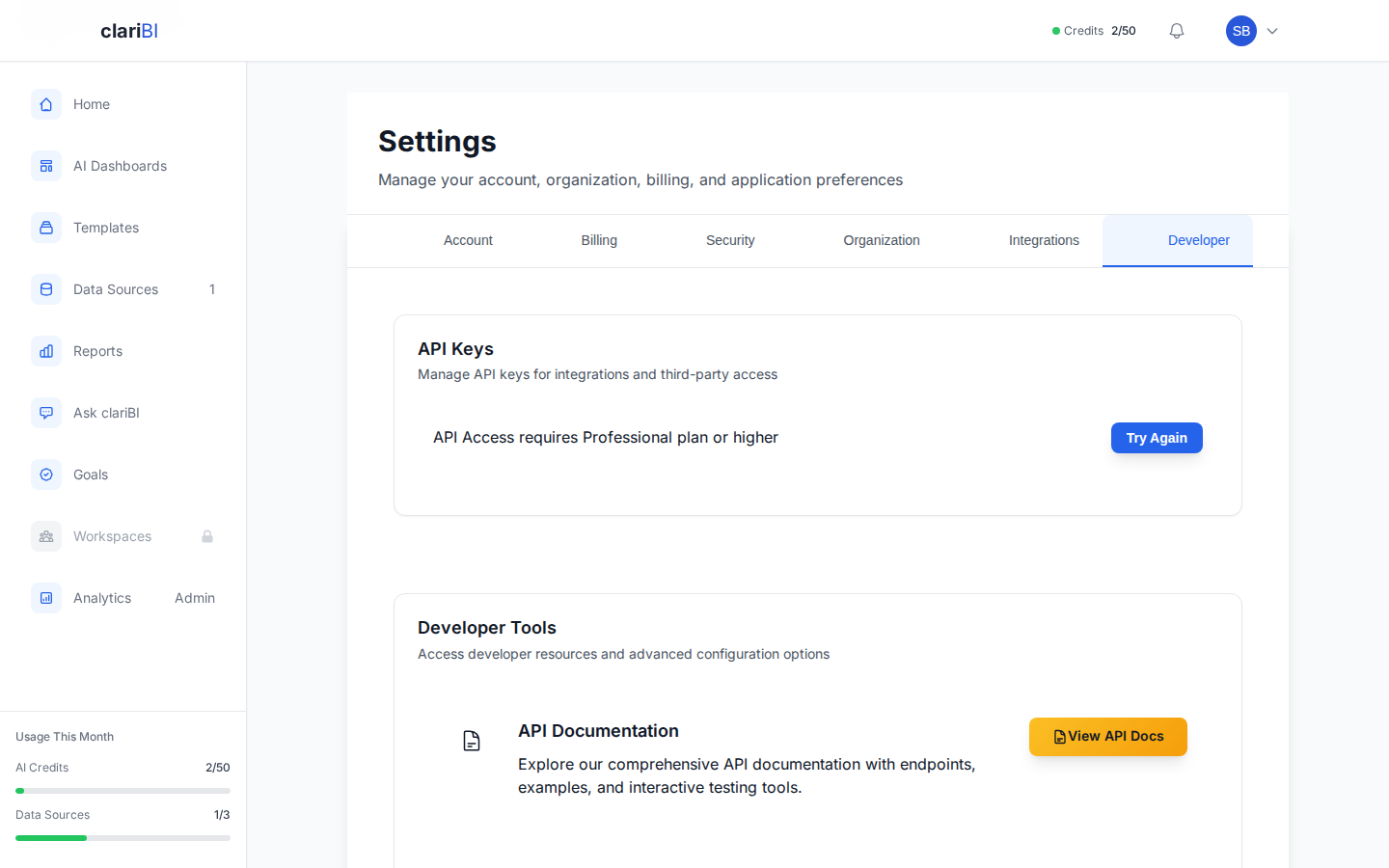
Creating an API Key
- Go to Settings > Security > API Keys (or navigate to Settings > API Keys).
- Click + Create API Key.
- Enter a name for the key. Use a descriptive name that indicates its purpose (e.g., "Zapier Integration", "Weekly Report Script", "BI Dashboard Feed").
- Select the scope:
- Read-only -- Can fetch data but cannot create, update, or delete resources.
- Read-write -- Full access to create, update, and delete resources within your permission level.
- Optionally set an expiration date. Keys without an expiration remain active until manually revoked.
- Click Create.
clariBI displays the API key once. Copy it immediately and store it securely. You cannot view the full key again after closing the dialog.
Key Format
API keys follow this format:
claribi_sk_live_xxxxxxxxxxxxxxxxxxxxxxxxxxxxxxxxxxxx
The prefix tells you the key type:
- claribi_sk_live_ -- Live production key
- claribi_sk_test_ -- Test/sandbox key (if available)
Using an API Key
Include the API key in the X-API-Key header of your HTTP requests:
curl -H "X-API-Key: claribi_sk_live_your_key_here" \
  https://claribi.com/api/data-sources/
API keys are an alternative to JWT token authentication. For differences between the two, see Authentication: JWT Tokens vs. API Keys.
Permission Inheritance
An API key inherits the permissions of the user who created it. If your organization role is Analyst (14 permissions), a read-write API key can only access resources an Analyst can access. It cannot perform Owner or Administrator actions.
If your role changes, the API key's effective permissions change with it.
Scopes Explained
Read-Only Scope
Read-only keys can: - List and retrieve data sources, dashboards, and reports - Fetch analytics query results - Read organization and user information - Access billing usage data
Read-only keys cannot: - Create, update, or delete any resource - Trigger data syncs or report generation - Modify settings
Read-Write Scope
Read-write keys can do everything read-only keys can, plus: - Create and update data sources, dashboards, and reports - Trigger data syncs and report generation - Manage goals and milestones - Update user settings (within the user's permission level)
Read-write keys cannot: - Perform actions beyond the user's organization role - Manage other users' API keys - Change billing or subscription settings (these require the web interface)
Rotating API Keys
Regular key rotation limits the damage if a key is leaked. clariBI recommends rotating keys every 90 days.
How to Rotate
- Go to Settings > Security > API Keys.
- Click Rotate next to the key you want to rotate.
- clariBI generates a new key with the same name, scope, and permissions.
- Copy the new key and update it in your scripts and integrations.
- The old key remains active for a grace period of 24 hours, then it is automatically revoked.
The grace period gives you time to update all systems using the old key without downtime.
Setting Up Rotation Reminders
On the API Keys page, each key shows its age. Keys older than 90 days show a warning badge. You can also configure email reminders:
- Click the three-dot menu on a key.
- Select Set Rotation Reminder.
- Choose a reminder interval (30, 60, or 90 days).
- clariBI sends an email when the key approaches the rotation date.
Revoking API Keys
Revoke a key immediately if it is compromised or no longer needed.
- Go to Settings > Security > API Keys.
- Click Revoke next to the key.
- Confirm the revocation.
Revoked keys stop working immediately. Any request using a revoked key returns a 401 Unauthorized error.
Bulk Revocation
If you suspect a security breach, you can revoke all keys at once:
- Click Revoke All Keys at the top of the API Keys page.
- Confirm the action.
- Create new keys for any integrations that still need access.
Viewing Key Activity
Each API key has an activity log showing:
- Last used date and time
- Number of requests in the last 24 hours, 7 days, and 30 days
- Most recent endpoint accessed
Use this information to identify unused keys (candidates for revocation) and high-traffic keys (candidates for monitoring).
Best Practices
- One key per integration. Create separate keys for each script or service. If one key is compromised, you can revoke it without affecting others.
- Use read-only when possible. If a script only reads data, give it a read-only key. This limits potential damage.
- Set expiration dates. Keys that are meant for temporary use (a one-time data migration, a demo) should have an expiration.
- Never commit keys to version control. Use environment variables or a secrets manager.
- Rotate every 90 days. Set up reminders so rotation does not slip.