What Data Can You Pull from Jira?
Connecting Jira to clariBI gives you access to:
- Issues -- all issue types (stories, tasks, bugs, epics, subtasks) with their fields
- Sprints -- sprint names, dates, goals, and completion status
- Story Points -- estimation data for velocity tracking
- Cycle Time -- time from creation to completion for each issue
- Custom Fields -- any custom fields configured in your Jira instance
- Worklogs -- time tracking entries if your team uses Jira's time logging
- Comments -- comment counts and activity metrics
Prerequisites
- A Jira Cloud instance (Server/Data Center connections require the REST API source type)
- A Jira account with at least Browse Projects permission
- Admin access to the Jira instance if you need to install the clariBI app (first-time setup only)
Step 1: Start the Connection
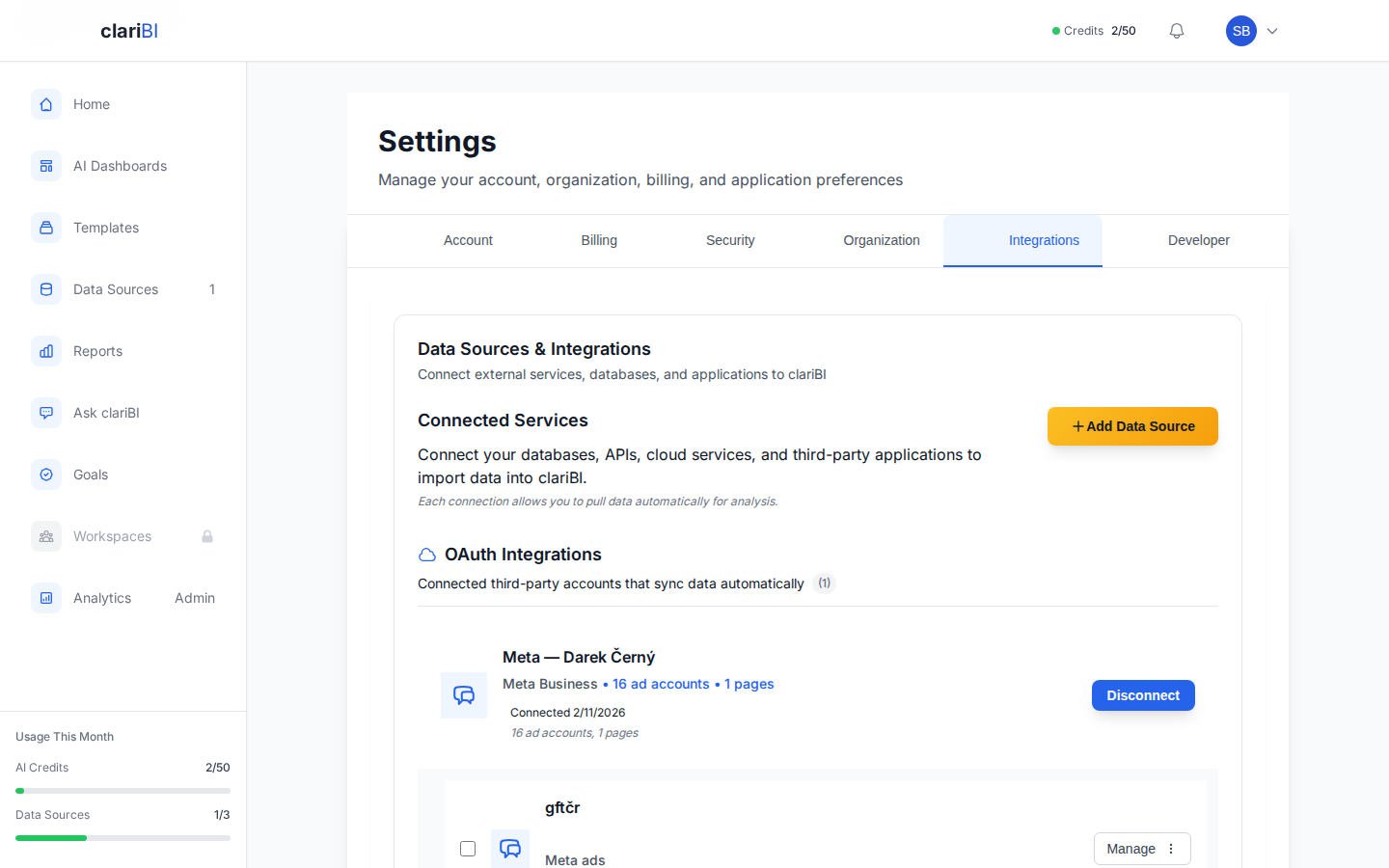
Navigate to Data Sources and click Add Source. Select Jira as the data source type.
Step 2: Authorize with Atlassian
Click Connect with Atlassian. You will be redirected to the Atlassian authorization page:
- Select the Jira site you want to connect (if you have multiple Atlassian sites).
- Review the permissions: clariBI requests read-only access to issues, projects, sprints, and boards.
- Click Accept.
You are redirected back to clariBI with the connection established.
Step 3: Select Projects
clariBI lists all projects accessible to your Jira account. Select the projects you want to sync. You can select one project, several, or all of them.
For each project, clariBI syncs:
| Data | Description |
|---|---|
| Issues | All issue types with standard and custom fields |
| Sprint History | All sprints (past and current) with start/end dates and goals |
| Board Configuration | Board type (Scrum or Kanban) and column mapping |
| Statuses | All workflow statuses and their categories (To Do, In Progress, Done) |
| Users | Assignees and reporters (name and email, no passwords) |
Step 4: Field Mapping
clariBI maps standard Jira fields automatically:
| Jira Field | clariBI Column |
|---|---|
| Summary | issue_title |
| Status | status |
| Priority | priority |
| Assignee | assignee |
| Reporter | reporter |
| Created | created_date |
| Updated | updated_date |
| Resolved | resolved_date |
| Story Points | story_points |
| Issue Type | issue_type |
| Sprint | sprint_name |
| Epic | epic_name |
| Labels | labels |
| Components | components |
Custom fields appear with their Jira field name. You can rename them in the mapping interface for clarity.
Step 5: Configure Sync
| Setting | Recommendation |
|---|---|
| Sync Frequency | Daily for most teams; hourly if you track real-time sprint progress |
| Historical Import | All issues (default) or limit to last N months |
| Include Sub-tasks | On (default) -- turn off to reduce data volume |
| Include Archived | Off (default) -- turn on for historical analysis |
Click Connect to begin the initial sync. Depending on project size, the first sync may take a few minutes.
Using Jira Data in clariBI
Suggested Analysis Templates
After connecting Jira, clariBI suggests templates tailored to project management data:
- Sprint Velocity Trend -- story points completed per sprint over time
- Bug Rate Analysis -- ratio of bugs to features over the last N sprints
- Cycle Time Distribution -- how long issues take from creation to resolution
- Assignee Workload -- issue distribution across team members
- Epic Progress Tracker -- completion percentage by epic
- Priority Distribution -- breakdown of issues by priority level
Dashboard Widgets
Build dashboards with widgets showing:
- Sprint burndown charts
- Cumulative flow diagrams
- Issue status distribution (pie chart)
- Average cycle time (metric widget)
- Open bugs count (metric widget)
- Story point velocity (line chart)
AI Conversational Questions
Ask the AI questions like:
- "What is our average sprint velocity over the last 6 sprints?"
- "Which team member resolved the most bugs last month?"
- "How has our cycle time changed since we started the new workflow?"
- "Show me the bug-to-feature ratio trend this quarter."
Troubleshooting
Authorization fails: Make sure you are connecting to a Jira Cloud instance. Server/Data Center instances use a different authentication flow -- use the REST API source type instead.
Projects are missing: Your Jira account may not have Browse Projects permission for those projects. Ask your Jira admin to verify your access.
Custom fields are empty: Some custom fields may only be populated on certain issue types. Check the issue type filter in your sync settings.
Sync is slow: Large projects with thousands of issues take longer on the first sync. Subsequent syncs are incremental and much faster.