What Is Conversational Analytics?
Conversational analytics is clariBI's chat interface where you type questions about your data in plain English. The AI reads your question, queries your connected data sources, analyzes the results, and responds with a written answer, relevant charts, and specific numbers.
No SQL, no formulas, no pivot tables. Just ask.
Getting There
Click AI Analytics in the sidebar. The conversational interface opens with a text input at the bottom and a conversation area above.
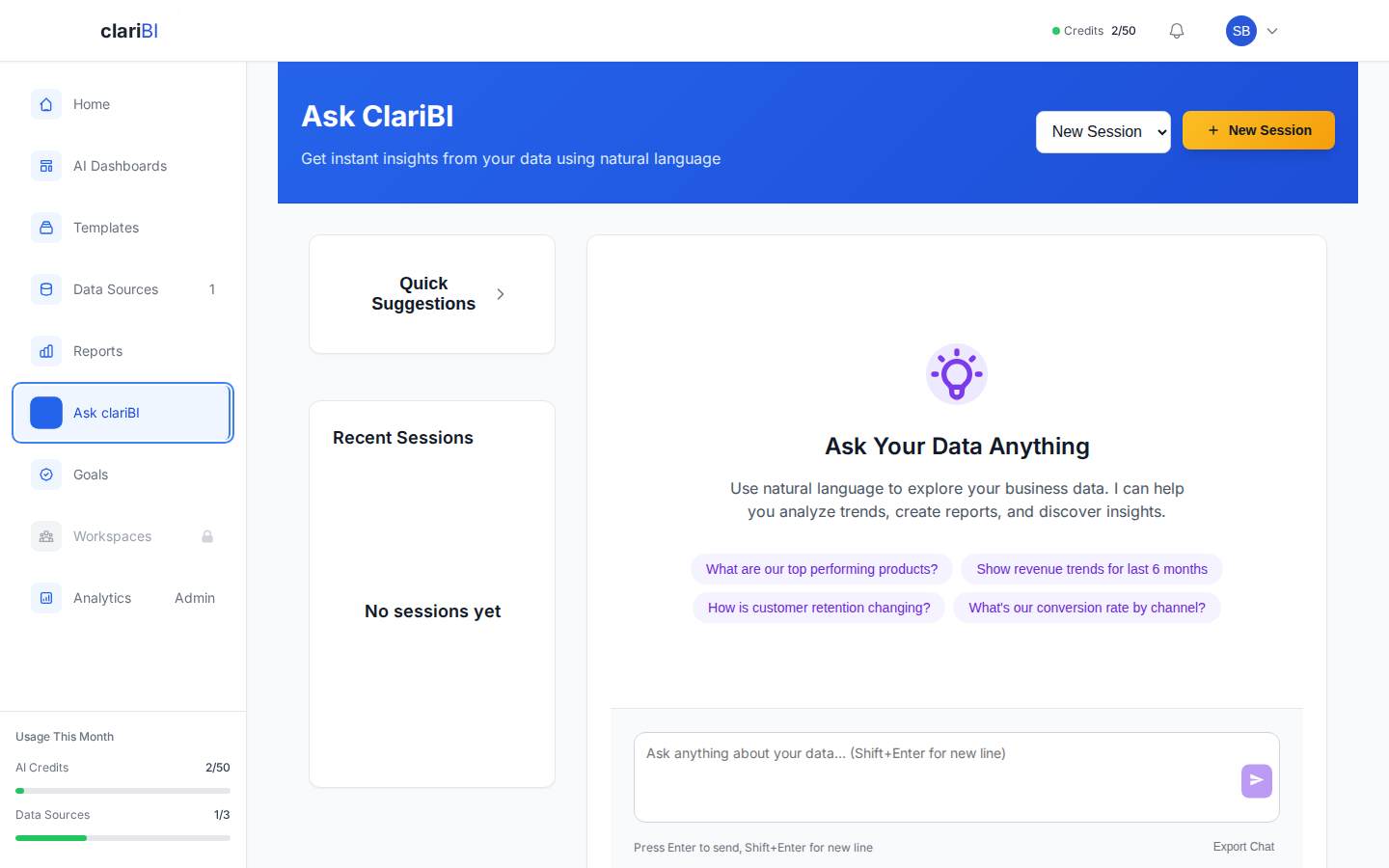
If you have not connected a data source yet, the interface prompts you to connect one before asking questions.
Asking Your First Question
Step 1: Select a Data Source
At the top of the chat, you will see a dropdown showing your connected data sources. Select the source you want to query. You can change this at any time during the conversation.
Step 2: Type Your Question
In the text input at the bottom, type a question in plain English. For example:
- "What was our total revenue last month?"
- "Which product had the most sales in Q3?"
- "Show me the trend of support tickets over the last 6 months"
Press Enter or click the Send button.
Step 3: Wait for the Response
The AI processes your question in 5 to 15 seconds. You will see a typing indicator while it works. Each question consumes one AI credit.
Step 4: Read the Answer
The response includes:
- A written answer -- a clear, direct answer to your question with specific numbers
- A chart -- a visualization chosen by the AI to best represent the data (bar chart, line chart, etc.)
- Data table (if relevant) -- the underlying data in tabular form
- Confidence score -- how well the AI's interpretation matches your question
- Follow-up suggestions -- related questions you might want to ask next
How to Phrase Good Questions
The AI understands natural language, but certain phrasing patterns work better than others.
Be Specific About Time
| Instead of | Try |
|---|---|
| "How are sales?" | "What were total sales in January 2025?" |
| "Is revenue up?" | "How does this month's revenue compare to last month?" |
| "Show me recent data" | "Show me data from the last 30 days" |
Name Your Metrics
| Instead of | Try |
|---|---|
| "How are we doing?" | "What is our conversion rate this quarter?" |
| "Show me the numbers" | "Show me revenue by product category" |
Ask for Comparisons
The AI excels at comparisons:
- "Compare revenue between Q1 and Q2"
- "Which region had the highest growth rate?"
- "How does this week compare to the same week last year?"
Ask for Trends
- "Show me the revenue trend over the last 12 months"
- "Is our churn rate increasing or decreasing?"
- "What is the trajectory of our active user count?"
Follow-Up Questions
After getting an answer, you can ask follow-up questions in the same conversation. The AI remembers the context:
- You: "What was our revenue last month?"
- AI: "Total revenue for January 2025 was $142,000..."
- You: "Break that down by product category"
- AI: "Here is the revenue breakdown by category..."
- You: "Which category grew the most compared to December?"
Follow-up questions cost one credit each.
Saving and Sharing Results
After getting a useful answer, you can:
- Save to a report -- click "Add to Report" to include this answer in a new or existing report
- Add to dashboard -- click "Create Widget" to turn the chart into a dashboard widget
- Share -- click "Copy Link" to share the specific answer with a team member
- Export -- download the chart or data table as an image or CSV
Conversation History
Your conversations are automatically saved. To access previous conversations:
- In the AI Analytics interface, click History in the top-right corner.
- Browse your past conversations, listed by date and the first question asked.
- Click any conversation to reopen it and continue asking follow-up questions.
Conversation history is private to your account. Other members of your organization cannot see your conversations unless you share a specific answer.
Switching Data Sources Mid-Conversation
You can change the data source at any point during a conversation:
- Click the data source dropdown at the top of the chat.
- Select a different source.
- Ask your next question -- the AI now queries the new source.
The conversation context (previous questions and answers) is preserved, but the AI understands that subsequent questions reference the newly selected source. This is useful when comparing data across sources: ask about revenue from your Stripe data, then switch to your Google Analytics source and ask about traffic.
Limits and Credit Usage
Each question costs one AI credit. Complex questions that require multiple data queries may cost 2-3 credits. Your remaining credits are shown at the top of the chat interface.
If you run out of credits, you can purchase additional credits from Settings > Billing or wait for your monthly reset.
Credit-Saving Tips
- Use follow-up questions instead of starting new conversations. Follow-ups cost the same (1 credit each) but produce better results because the AI has context.
- Use analysis templates for common questions -- they are optimized to get the best results per credit.
- Check the data table in a response before asking another question -- the answer might already be in the numbers.